OpenClaw x JarvisLabs: A Personal Assistant for Your GPU Cloud
AI assistants used to live in a browser tab and answer questions. Now they sit in your IDE, your terminal, and your phone, taking actions on your behalf. What else can you hand off? Research ideas, experiments, compute-heavy work, all kicked off from a chat thread you're already in.
OpenClaw is a personal AI assistant that lives in chat apps you already use: Discord, Telegram, Slack, iMessage, WhatsApp, Signal, and more. Pair it with the jarvislabs-gpu skill from ClawHub and your assistant can manage JarvisLabs GPUs from those same conversations. Ask it to find a cheap GPU, run a training script, generate a batch of images, or fine-tune a model on a Hugging Face dataset, and it takes care of the lifecycle: create, run, monitor, ship results back to your chat, and pause when work is done.
OpenClaw itself runs anywhere you have a Linux or macOS shell: your laptop, a mac-mini, a VPS, your own server, or a JarvisLabs CPU VM.
A JarvisLabs CPU VM is a comfortable home for it. The smallest CPU shape is enough for the assistant itself, and most people leave the host running 24/7 so they can reach their assistant from their phone whenever, run cron jobs from it, or keep long-lived background tasks alive.
If you're going on vacation or you won't need your assistant for a few days, you can pause the CPU VM, stop paying for compute, and resume it in seconds when you want it back. Your OpenClaw workspace, installed skills, channel configurations, and saved tokens all persist on disk while it's paused.
In this tutorial, we'll look at how to use your JarvisLabs instances and run experiments on them through OpenClaw.
Create a CPU VM
We first need a machine to host our OpenClaw instance if you don't already have one running. You can use anything you want here: your laptop, a mac-mini, a home server, or your own VPS. OpenClaw doesn't need much compute, so a simple machine is plenty.
JarvisLabs CPU VMs are performant and cheap. The smallest CPU VM is 2 vCPU and 8 GB RAM, which is plenty for OpenClaw.
Create one from the JarvisLabs dashboard. Or use the CLI:
jl create --vm --cpu --vcpus 4 --ram 16 --region IN2 --name my-openclaw-host --yesIf the JarvisLabs CLI is new to you, our CLI documentation is the place to start.
Install OpenClaw
Once the CPU VM is up, SSH into it. The JarvisLabs SSH docs cover the setup if you need it, and if you already have the JarvisLabs CLI installed locally you can shortcut with jl ssh <machine-id>. From inside the VM, install OpenClaw with the one-liner from the official website:
curl -fsSL https://openclaw.ai/install.sh | bashMake sure the OpenClaw binary directory is on your shell PATH so commands like openclaw are accessible:
echo 'export PATH="$HOME/.npm-global/bin:$PATH"' >> ~/.bashrc
source ~/.bashrc
Verify the install:
openclaw --versionNow onboard OpenClaw to a chat channel and a model provider. The official OpenClaw documentation walks you through the setup for each channel (Discord, Telegram, Slack, iMessage, WhatsApp, and others). Set up your channel and model provider before continuing.
Install the JarvisLabs GPU skill
The skill lives on ClawHub as a single SKILL.md file you can read end to end. Once it's loaded, OpenClaw knows how to use the JarvisLabs CLI (jl) to manage GPUs for you: listing what's available, creating instances, running jobs, streaming logs, and pausing things when work is done.
Install the skill one of two ways.
From the shell
openclaw skills install jarvislabs-gpuThis just installs the skill. You'll install the JarvisLabs CLI yourself in the next step.
From your assistant
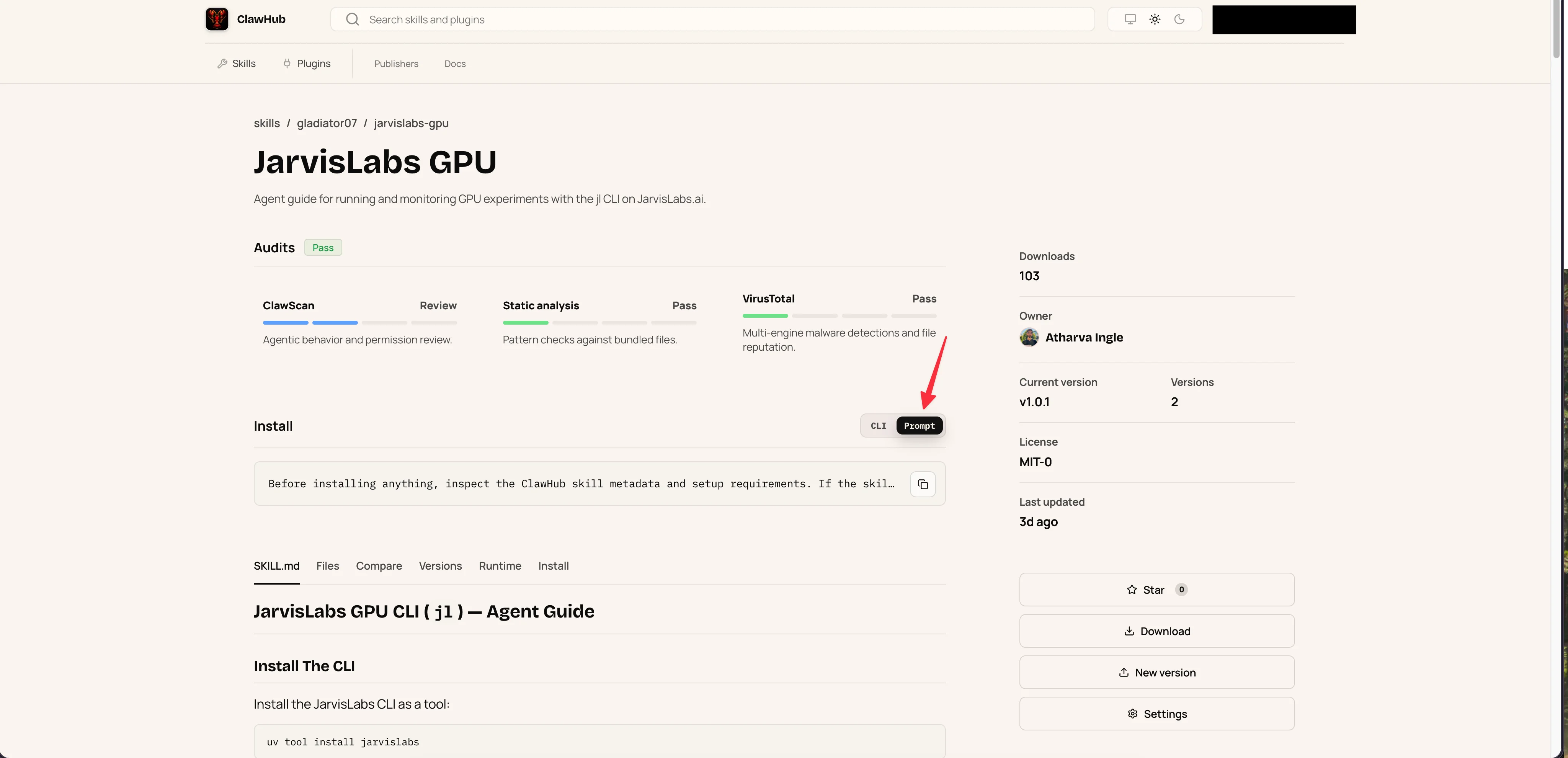
Or you can just ask your OpenClaw assistant to install the skill for you. The ClawHub page has a Prompt tab on its install widget. Copy that prompt block, paste it into a chat with your assistant, and it audits the skill metadata and installs the skill. The skill's metadata also tells the assistant that the jl CLI is required, so the assistant will install the CLI on the same host too.
With the skill installed, OpenClaw knows what to do. The next steps wire it up to your JarvisLabs account: an API token so it can talk to the account at all, and an SSH key so it can SSH into the GPU instances it eventually spins up.
Install the JarvisLabs CLI
If you went with the assistant install above, the CLI is already on this host and you can skip to the next step.
If you installed the skill from the shell, install the CLI yourself by following our CLI documentation. It walks through pip install jarvislabs or uv tool install jarvislabs. Confirm with:
jl --versionAuthenticate with your API token
The CLI needs an API token to talk to your JarvisLabs account. Grab one from your account settings. Two ways to wire it in.
Manually
In the terminal on the OpenClaw host:
jl setupPaste the token when prompted.
By asking your assistant
Paste this into your chat:
Run `jl setup` with my API token: <YOUR_TOKEN>. Confirm with `jl status`.A note before pasting your token. Anything you send the assistant goes through whichever model provider you onboarded, so your token passes through their infrastructure too. If you'd rather not, run jl setup yourself in the terminal and paste the token when prompted.
Register an SSH key from this host
OpenClaw will SSH into GPU instances it spins up to run jobs on them. JarvisLabs only accepts SSH connections from public keys you've registered, so the machine OpenClaw is running on (a CPU VM, a VPS, your mac-mini, your laptop, wherever you set it up) needs one of its keys on file with your JarvisLabs account.
Manually
Follow our SSH key documentation, or use the CLI directly:
ssh-keygen -t ed25519 -N "" -f ~/.ssh/id_ed25519 -C "openclaw-host"
jl ssh-key add ~/.ssh/id_ed25519.pub -n openclaw-host
By asking your assistant
Paste this into your chat:
Generate an ed25519 SSH key on this host at ~/.ssh/id_ed25519 with no passphrase. Register the public key with JarvisLabs using `jl ssh-key add ~/.ssh/id_ed25519.pub -n openclaw-host`. Confirm `jl ssh-key list` shows the new key.Nothing sensitive in this one, so either way is fine.
Try it out
Send your assistant something like:
Can you tell me what instances I have running on jarvislabs
The assistant uses the skill to look up your account and replies with what's running and what's paused, alongside a quick read on availability and balance if it's useful.
Some ideas to get you started
Once that first message lands, here are some prompts to try.
If you do ML research:
- "Spin up an L4 GPU, run
train.pyfrom this gist, stream the logs to me, ping me when validation loss drops below 0.1, and pause the GPU when done." - "Fine-tune a LoRA on top of Qwen2 7B using the dataset at
nvidia/HelpSteer2. Train for one epoch, evaluate on the validation split, and tell me whether the LoRA actually beats the base model. Save the adapter to my workspace." - "Reproduce the headline benchmark from this paper's GitHub repo on an A100. Run their script as-is, then tell me whether the numbers in their README match what you got."
- "Run a 7B base model and a 7B instruct model on the same set of prompts on an H100. Show me side-by-side outputs and per-prompt latency."
- "Sweep three learning rates over my training script on a cheap GPU, record loss curves, and tell me which one looks healthiest."
If you're just tinkering:
- "Find the cheapest GPU that can run Llama 3 70B in 4-bit right now. Spin it up, run inference on this prompt, send me the answer, and pause it."
- "Set up ComfyUI on an H100. Generate 20 product photos of the image I just attached, in different lighting conditions. Send me the results here."
- "Run Whisper on the audio file I just sent. Reply with the transcript and an SRT."
- "Generate a Studio Ghibli style image of a lobster wearing a chef's hat. Use the cheapest GPU you can find."
- "Train a small image classifier on CIFAR-10. Don't spend more than a dollar. Tell me final accuracy."
Here's one of these going end-to-end. We pointed the assistant at a JarvisLabs tutorial for running the new FLUX.2 Klein model on an A100 40GB, gave it an image prompt, and asked it to follow the tutorial and send the generated image back. The message that kicked it off:
Can you now follow this tutorial on running flux2 klein model on an A100 40GB and get the model up and running and generate image for this prompt: "A golden retriever wearing sunglasses, sitting on a beach chair" and then send me that image?
You can use jarvislabs skill This is the tutorial: https://docs.jarvislabs.ai/tutorials/running-flux2-klein
Wrapping up
You can act on ideas on the go now. Your OpenClaw assistant has access to some of the best GPUs in the world, reachable from any chat app on your phone. Whether you have a sudden idea on a walk, you're mid-experiment and want to try one more thing, or you're doing actual research and need to run something quickly, just prompt your assistant and describe what you want.
It handles the whole lifecycle for you, from spinning up the GPU to sending the results back to your chat. You don't have to be at a desk for any of it.
Get Started
Build & Deploy Your AI in Minutes
Cloud GPU infrastructure designed specifically for AI development. Start training and deploying models today.
View Pricing